
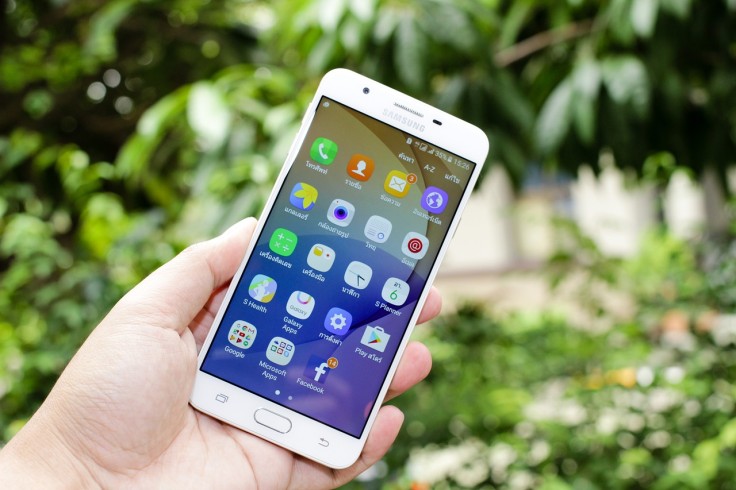
Samsung phones are often chosen by users who care about privacy, data protection, and control over their digital lives. With multiple layers of defense built directly into hardware, software, and everyday settings, Samsung security features offer more than just a screen lock. For users who take a few minutes to adjust their Galaxy privacy settings, Samsung phone security can become significantly stronger with very little effort.
1. Samsung Knox: Defense-Grade Protection at the Core
One of the most important Samsung security features is Samsung Knox, the protection platform that runs at the core of many Galaxy devices. It is built into the hardware and software, rather than added on later, which helps protect critical data from the moment the phone is turned on.
This layered approach makes it harder for attackers to access sensitive information, even if they attempt to modify the system at a low level.
Knox supports secure boot processes, real-time monitoring, and encryption to keep the device environment trustworthy. If suspicious changes are detected, Knox can block or limit unsafe operations to reduce potential damage.
For users, this means Samsung phone security is working quietly in the background without requiring constant attention or technical knowledge.
2. Secure Folder: A Private Space for Sensitive Data
Secure Folder is another core part of Samsung phone security, designed for information that should not be visible in the main gallery or app list. It creates an encrypted, isolated space on the device where users can place apps, photos, files, and documents that require extra protection.
This separation helps shield private content from casual snooping, lost phones, or shared devices.
Secure Folder can be locked using a separate password, PIN, pattern, or biometric option, adding an extra barrier even if someone else unlocks the main phone.
Users can install duplicate apps inside Secure Folder, such as banking, messaging, or work tools, so that the data in those apps stays contained. When combined with well-configured Galaxy privacy settings, Secure Folder becomes a practical way to keep personal and professional information more secure.
3. Advanced Biometric Lock: Face and Fingerprint Security
Modern Galaxy devices support several biometric methods that can strengthen Samsung phone security beyond traditional PINs.
Fingerprint scanners, often integrated into the screen or power button, offer quick access while keeping the device locked to unauthorized users. Because fingerprints are unique and difficult to guess, they are usually more secure than simple numeric codes.
Face recognition is another option available on many Samsung phones. While convenient, it is generally recommended to pair it with a strong backup method such as a complex PIN or password.
Users who prioritize maximum security often rely primarily on fingerprint authentication. By choosing the right combination of biometric and backup credentials in the Galaxy privacy settings, individuals can balance convenience and safety according to their needs.
4. Auto Blocker and App Protection Settings
Auto Blocker is an increasingly important part of the Samsung security features set, aimed at defending against unsafe apps and malicious behavior. When enabled, it can stop installations from unknown sources, block suspicious commands sent over USB, and reduce the risk of sideloaded malware.
This is particularly useful for users who connect their devices to many different computers, chargers, or accessories.
The Security and privacy section on Galaxy phones also offers tools to scan for potentially harmful apps and to review which apps have elevated permissions. By turning on Auto Blocker and being cautious about app sources, users can avoid many common threats, such as fake apps or spyware.
These controls give non-technical users a safer default environment without requiring deep knowledge of cybersecurity.
5. Theft Protection and Lost Device Protection
Samsung phone security extends beyond software threats to physical risks such as theft or loss.
Newer Galaxy models and software versions offer features like theft detection lock, offline device lock, and remote controls that make it harder for thieves to access data. If motion patterns indicate possible theft, the device can automatically tighten security or lock itself, depending on the configuration.
Remote features allow users to locate, lock, or even wipe a lost phone after signing in to their account from another device. Even when a stolen phone is offline, certain protections ensure that once it connects again, security actions can be applied.
This means that even if the device itself cannot be recovered, personal data remains harder to exploit, which is a central goal of Samsung phone security.
6. Galaxy Privacy Settings for App Permissions and Data Control
Galaxy privacy settings give users direct control over what apps can access, which is just as important as protecting the device itself. Within the Security and privacy dashboard, users can view and adjust permissions such as location, camera, microphone, contacts, and more.
If an app repeatedly requests access that seems unnecessary, its permissions can be limited or revoked entirely.
The dashboard also helps people see recent permission use, making it easier to spot unusual activity. For example, if an app uses the microphone or location more often than expected, users can respond by changing its access level.
By spending a few minutes reviewing Galaxy privacy settings, many people can significantly improve Samsung phone security without installing extra tools or services.
7. Encryption, Secure Wi‑Fi, and Cloud Protection
Encryption is one of the most fundamental Samsung security features. Modern Galaxy devices typically use strong encryption to protect data stored on the device, so information is not easily readable if someone removes the storage or attempts to access it directly.
As long as the user has a strong screen lock, encrypted data remains far more difficult to exploit.
Secure Wi‑Fi features help protect data as it travels across networks, especially on public or untrusted connections. In some regions and models, Samsung offers options to encrypt or filter traffic over Wi‑Fi, reducing the risk of eavesdropping.
Cloud-related protections, such as encrypted backups and secure account logins, further support Samsung phone security by ensuring that data synced to the cloud is not left exposed.
Practical Tips to Make the Most of Samsung Security Features
Knowing that these protections exist is helpful, but changing a few settings can make them far more effective. Users can start by enabling a strong screen lock using a long PIN, password, or pattern, then adding fingerprint authentication for convenience.
Turning on Auto Blocker and being selective about installing apps only from trusted sources will immediately reduce common risks.
Next, it is worthwhile to open Secure Folder and move sensitive apps and files into that protected space. Regularly visiting the Galaxy privacy settings to check permission use, disable unnecessary access, and review security recommendations can keep the device aligned with current best practices.
Finally, enabling theft and lost device protection ensures that if the phone goes missing, the data does not become an easy target. Together, these steps allow Samsung security features to work at full strength and offer a balanced combination of privacy, control, and everyday usability.
Frequently Asked Questions
1. Do Samsung phones need antivirus apps installed?
Most users do not need a separate antivirus because Samsung Knox, Auto Blocker, and built‑in app protection already cover common threats. For high‑risk use (frequent sideloading, unknown sources), extra security apps may still be helpful.
2. Can Samsung Secure Folder be backed up or moved to a new phone?
Yes. Secure Folder content can be backed up using a Samsung account and then restored on another compatible Galaxy device, as long as the user signs in with the same account and credentials.
3. Does using biometric unlock affect battery life on Samsung phones?
Biometric features like fingerprint and face unlock use minimal power and typically have a very small impact on battery life compared with screen brightness, apps, or connectivity.
4. Are Galaxy privacy settings the same on all Samsung models?
Core options are similar across recent Galaxy devices, but specific features and menu layouts can vary based on model, Android version, and One UI version.
Originally published on Tech Times


